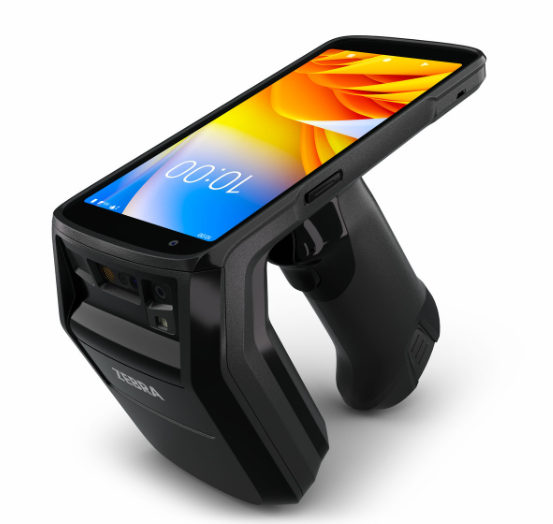
This section contains setup information for using the Zebra TC22R RFID Reader with the TagMatiks AT Lite Application.
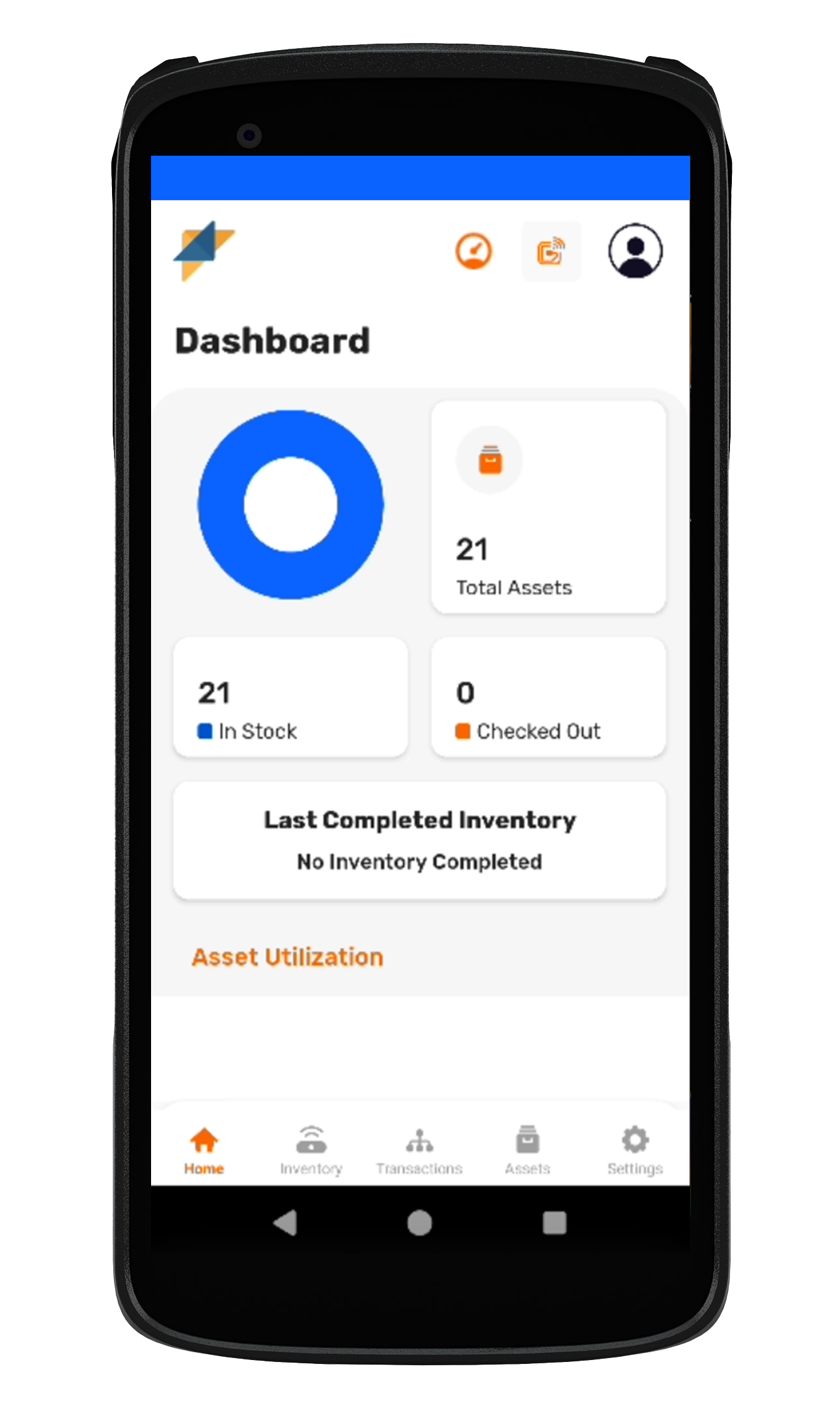
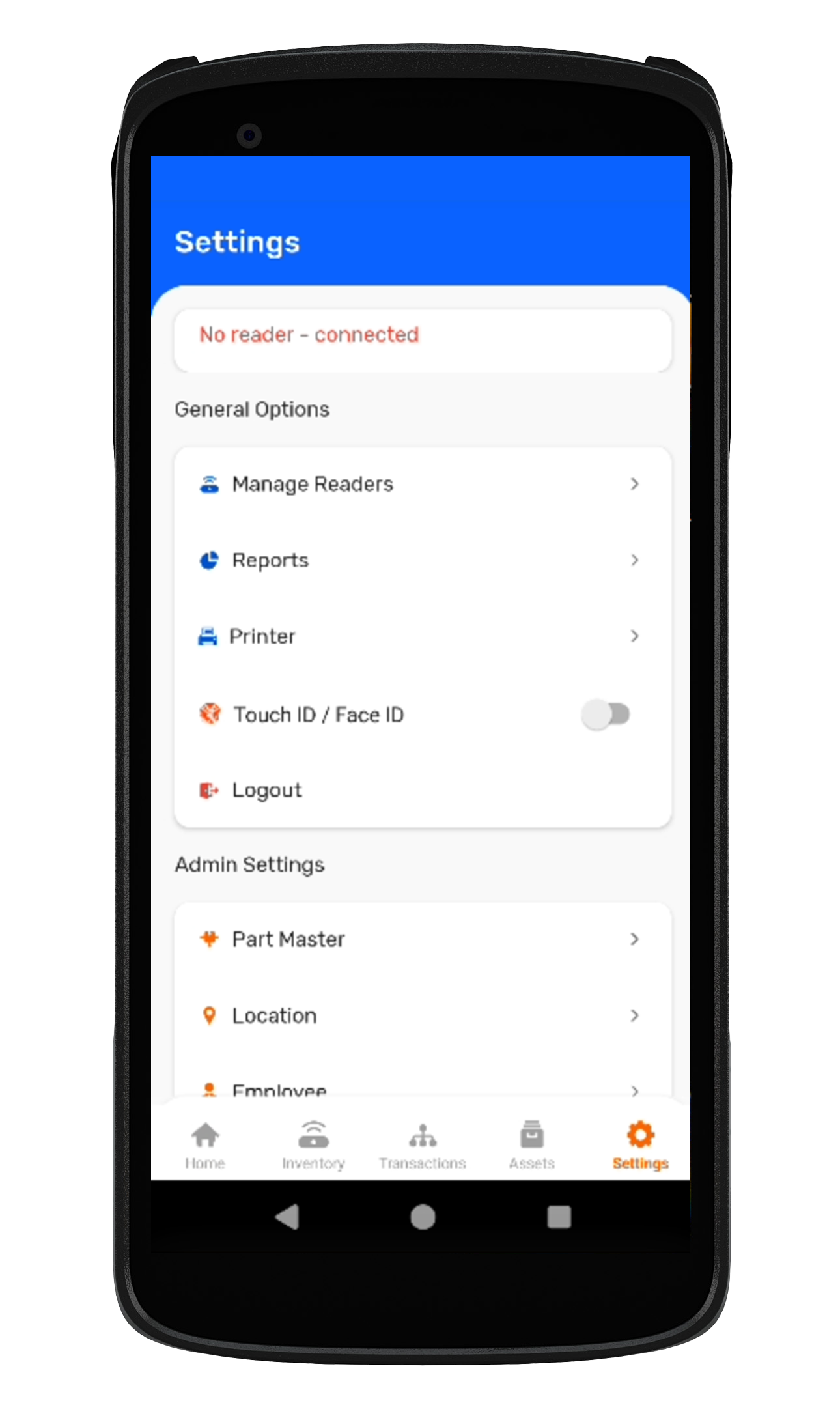
1. Open TagMatiks AT Lite and tap the “Settings” button from the bottom right-hand side of the application. As shown in fig 0.1.
2. Select the “Manage Readers” option to see the list of the readers. As shown in Fig 0.2.
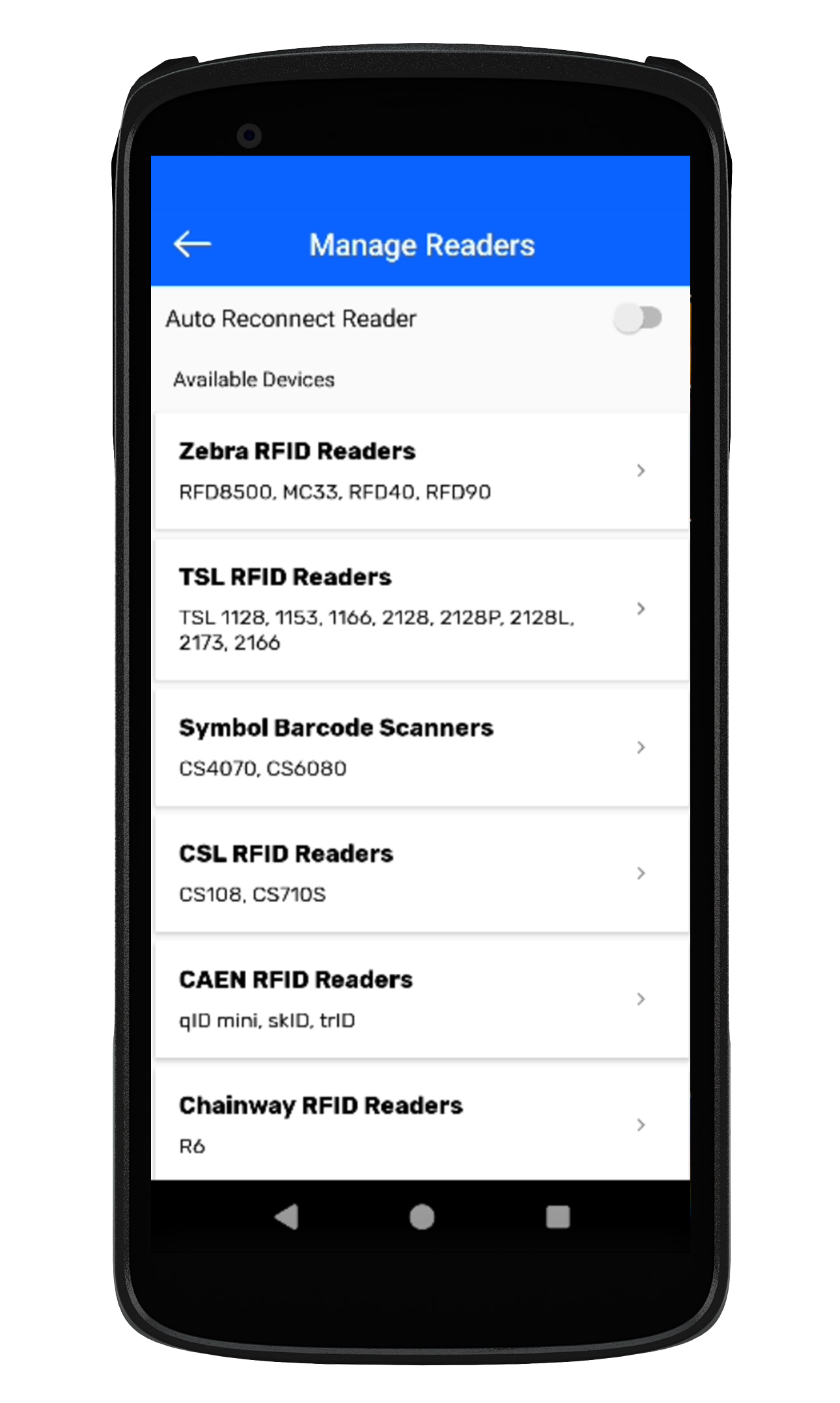
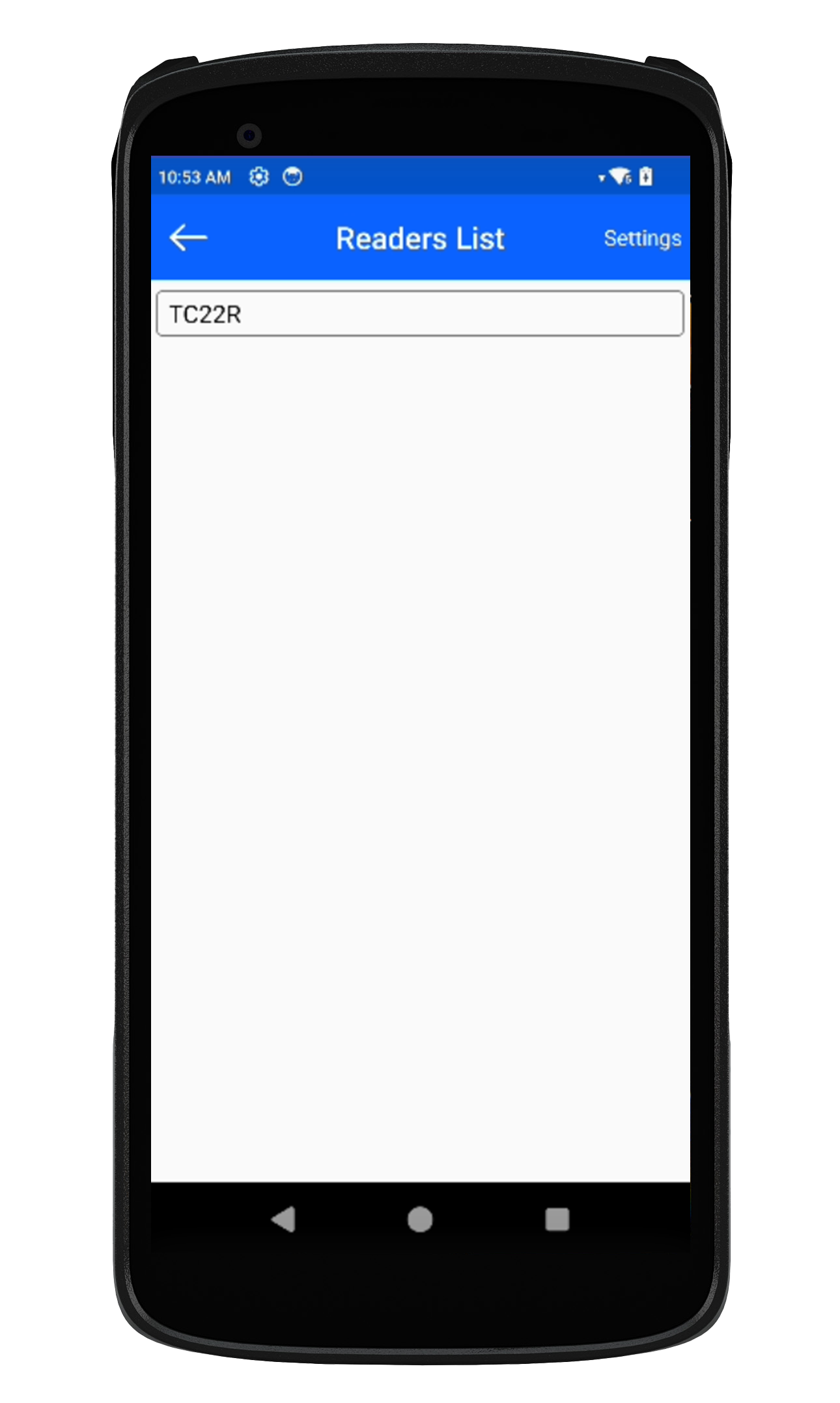
3. Tap on the “Zebra RFID Readers” to connect Zebra TC22R with your Android device. As shown in Fig 0.3.
4. Tap on the “TC22R” to successfully make the connection between the TagMatiks AT Lite application & Zebra TC22R Reader. As shown in Fig 0.4.
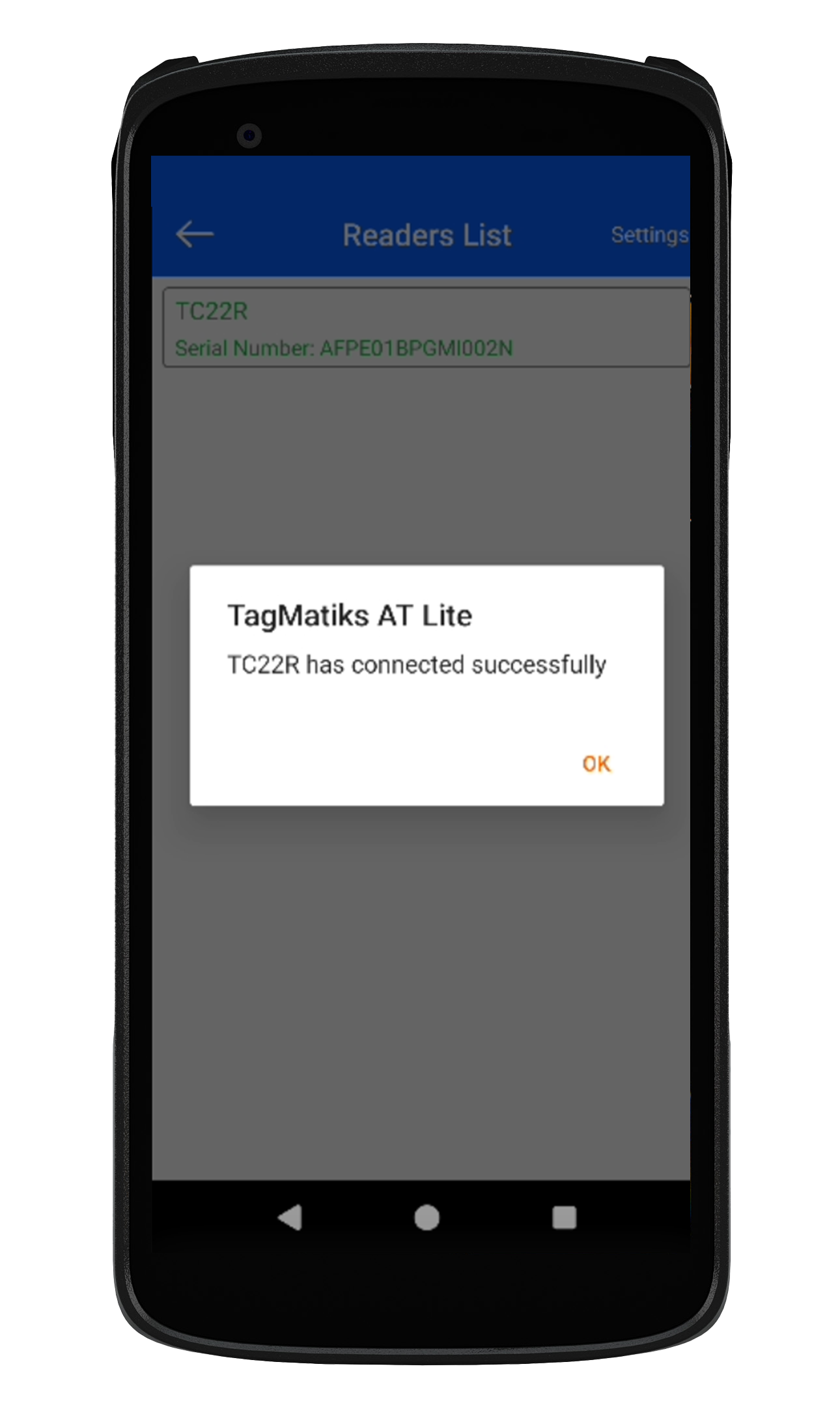
5. An acknowledgment will appear stating that the “TC22R has connected successfully”. As shown in Fig 0.5.
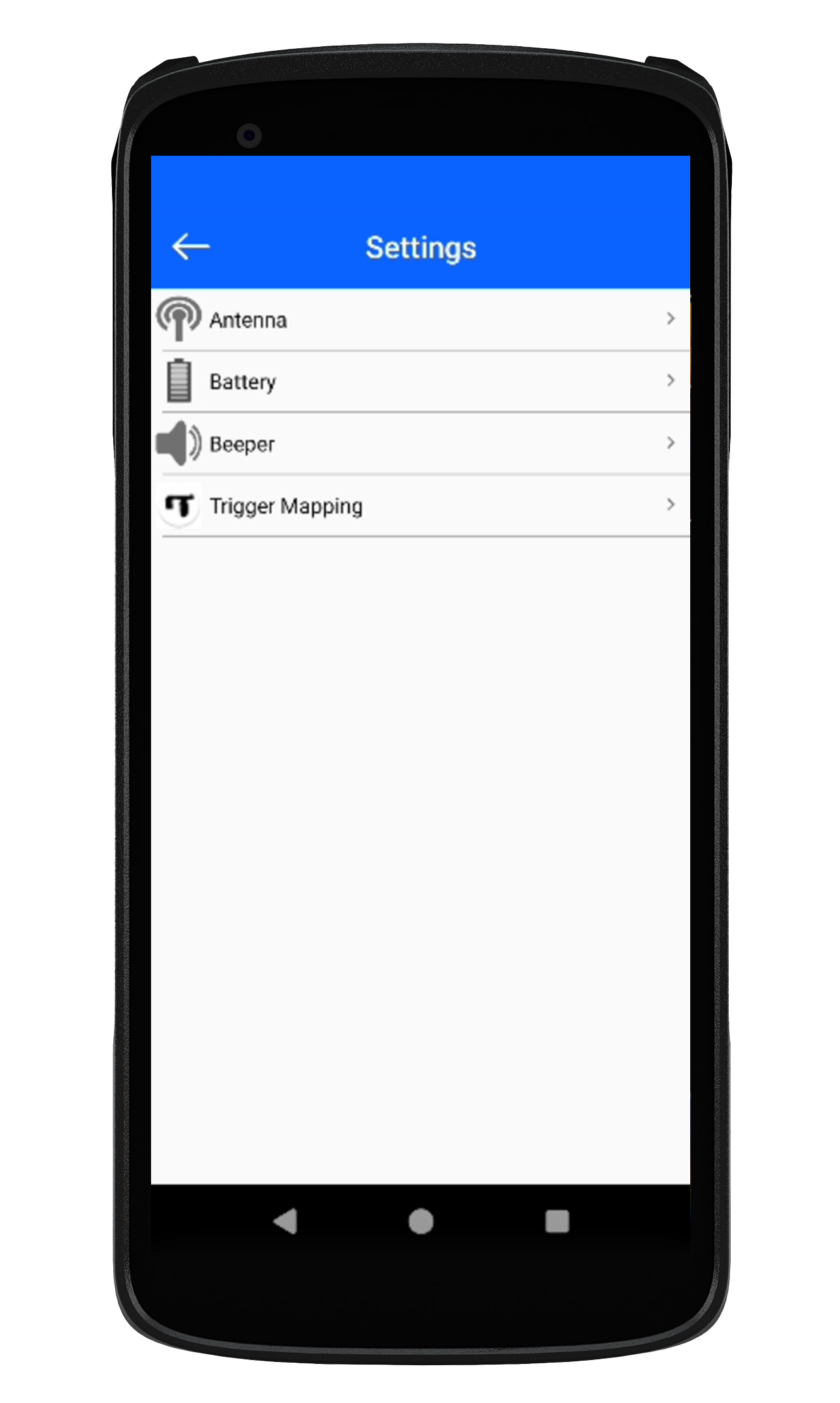
6. You can also configure the settings of the reader by tapping on the Settings option
The Settings menu has the following options: As shown in Fig 0.6.
1. Upper (RFID)Lower (Sled Scan) - When you select this option, Means Upper Part of the Trigger will be set to read the RFID Tags and Lower Part of the Trigger will be set to scan the Barcodes.
2. Upper (Sled Scan) & Lower (RFID)-When you select this option, Means Upper Part of the Trigger will be set to scan the Barcodes and Lower Part of the Trigger will be set to Read the RFID Tags.
NOTE: Make Sure to Press the Trigger Lightly and the corresponding porting of the Trigger only (Either Upper or Lower) whatever is set and not to press the joint section of the Trigger to avoid any misbehave.